
For creators with an image to build on
An image you already have. A new direction to explore.
A product photo, a portrait or a composition reference can give your brief a visible starting point. Add a reference, explain which features matter, and describe the new setting or visual direction.
Where the creative process gets stuck
The look you want is hard to explain
Materials, color and composition may already be visible in your source image. Use that image for context, then add words to explain the creative goal.
Clearly separate what to keep from what to change so your reference anchors the look while your prompt directs the new scene.
What stays and what changes gets mixed up
“Use this as a reference” leaves the important choices open. Specify whether to follow the subject, the lighting, the background or the layout.
More references can mean less direction
Several images may provide conflicting signals. Choose relevant material and explain the role of each reference.
ImageGenFlow / Create with reference images
Give your next image a clear direction
Study real images for light, composition and detail, then bring your own brief to the workspace.
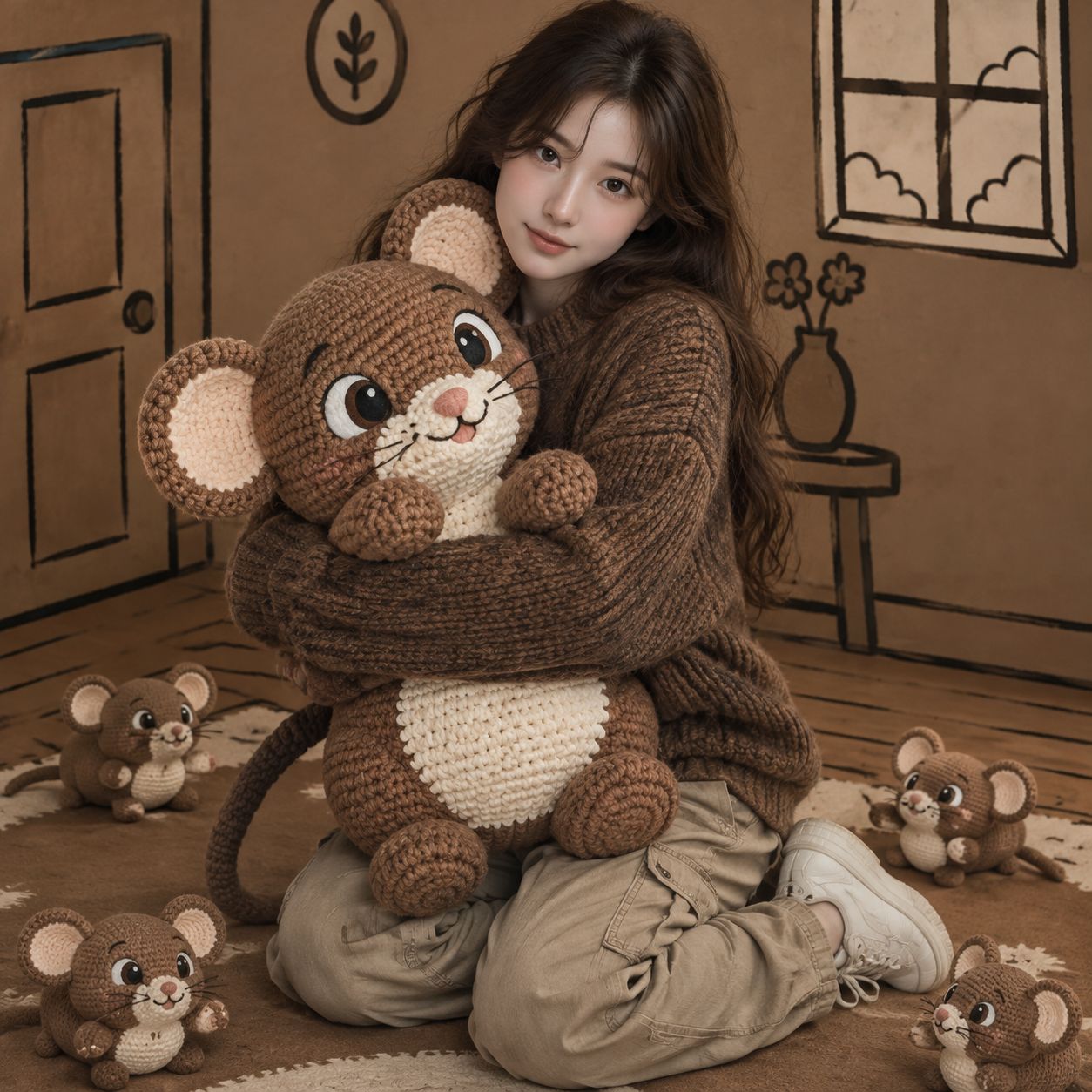
Describe the subject features that matter
Product shape and soft materials are useful features to name alongside your own reference. Check them again in the generated result.
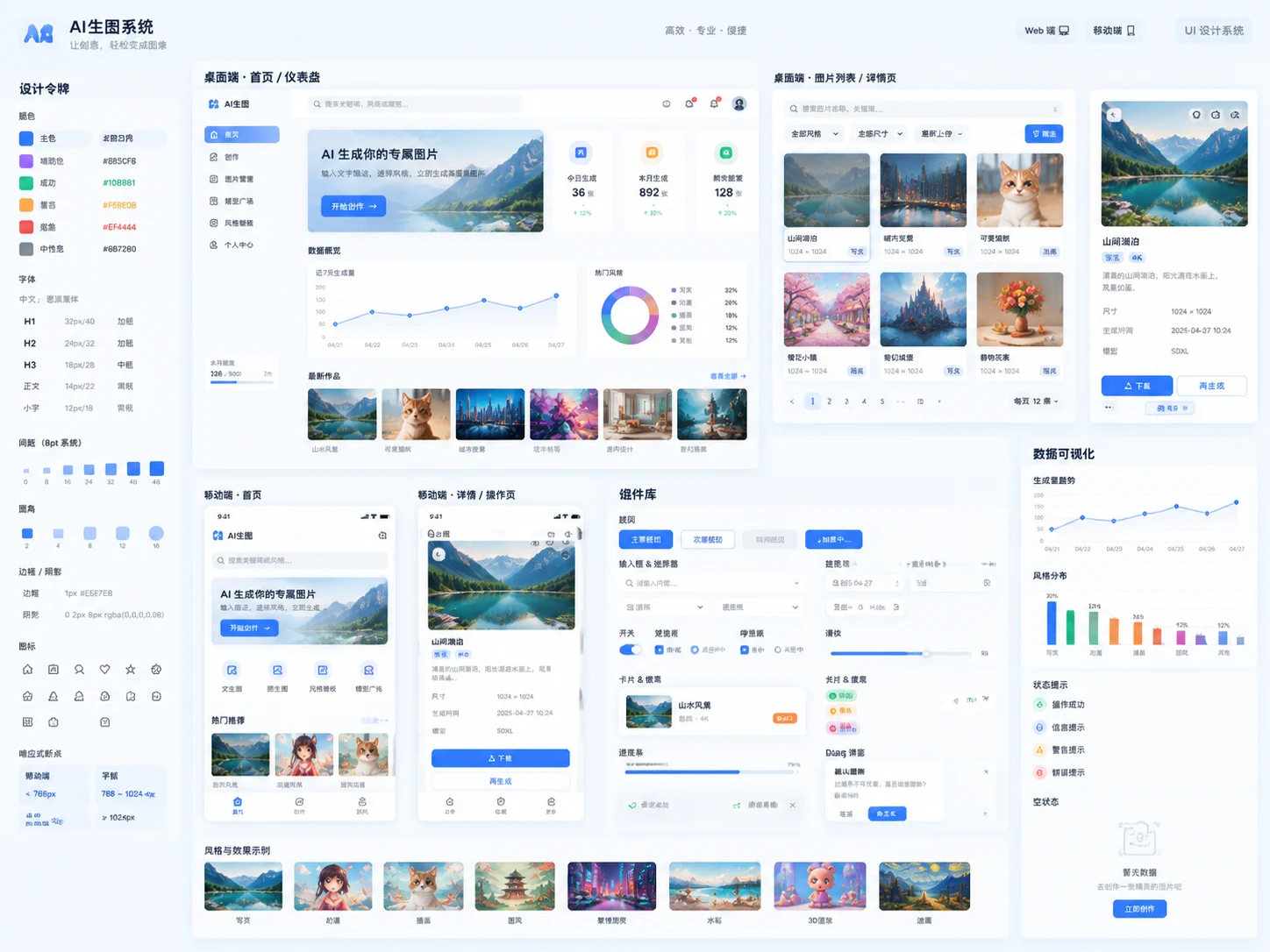
Separate composition from visual style
Break an interface brief into hierarchy, colors and positions. Use your reference to explain the layout, then describe the changes.
From a first idea to your next image
- 01
Choose a clear reference
Start with a complete subject and a clear purpose. Use your own material or material you have permission to use.
- 02
Say what to retain and change
Choose a reference-capable model, add your image and describe the appearance to follow and the changes you want.
- 03
Compare, then narrow the brief
Check the subject, style and composition. In the next iteration, adjust the single condition that matters most.
A few things before you start
Do all models accept reference images?
No. Check model information in the workspace and choose one that supports reference images before adding your file.
Will my reference be copied exactly?
No exact copy is guaranteed. References provide visual guidance; details, text, proportions and composition may change. Review the result for your intended use.