
For creators refining the next version
Close to the image you want? Keep working from this one.
Try a softer light, a different background or a more focused composition. Bring an existing result into a supported editing model and describe the next change without rewriting the entire brief.
Where the creative process gets stuck
One detail is wrong. You start over.
The subject and atmosphere are close, but a background or detail still needs work. Explain what to retain and focus the edit on the current problem.
Focus each edit on one primary adjustment—such as backdrop, color warmth or local detail—while stating what should stay unchanged.
Too many changes make results hard to compare
Changing background, palette and framing together makes it difficult to understand the outcome. Give each iteration one main objective.
One area improves. Another changes.
A model may alter areas you did not mention. Check the subject, text and detail after every edit; instructions to keep something unchanged are not a guarantee.
ImageGenFlow / Continue editing an image
Give your next image a clear direction
Study real images for light, composition and detail, then bring your own brief to the workspace.
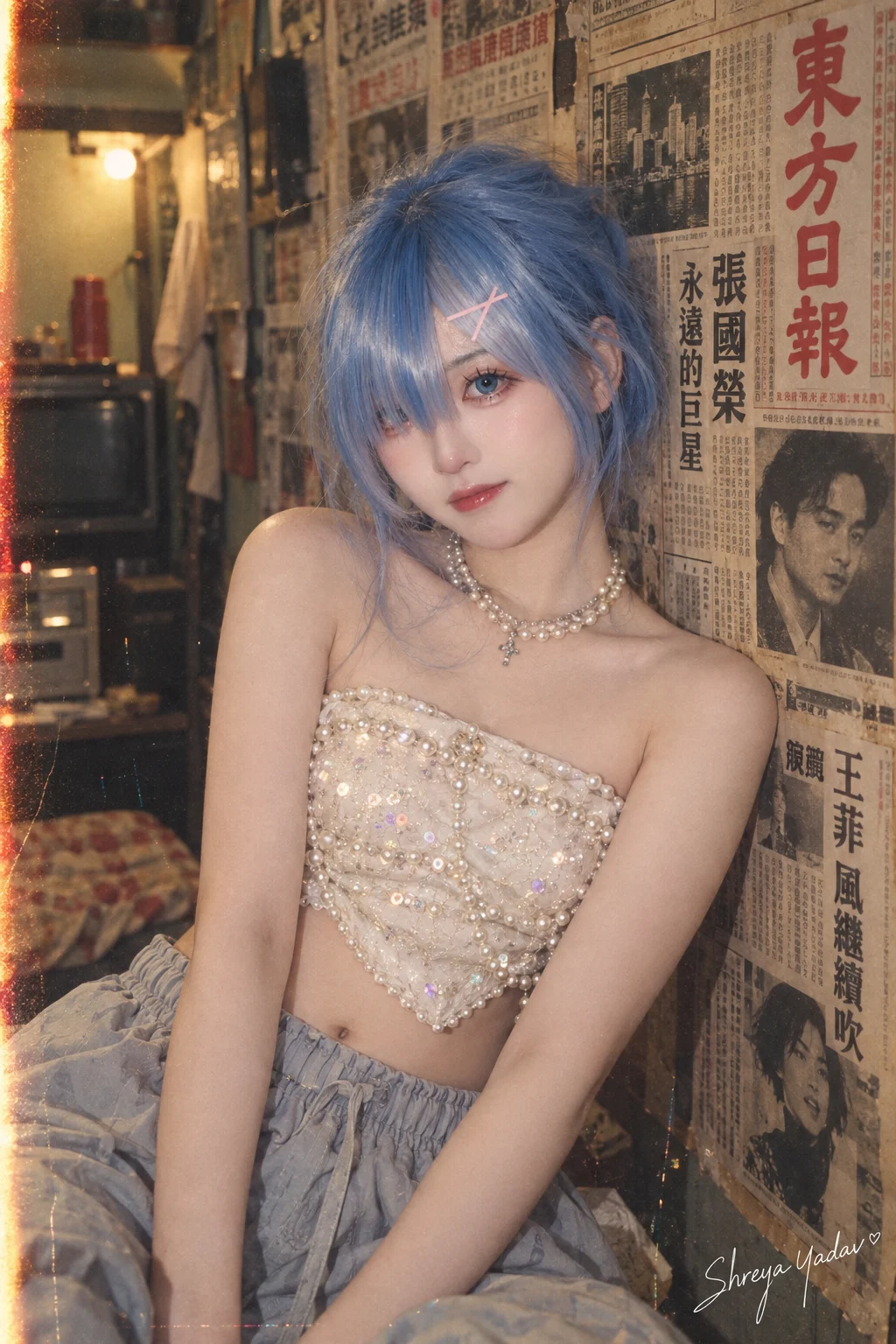
Keep the subject, refine the atmosphere
When pose and expression already work, use an edit pass to tune the vintage film warmth, edge vignette and backdrop texture.
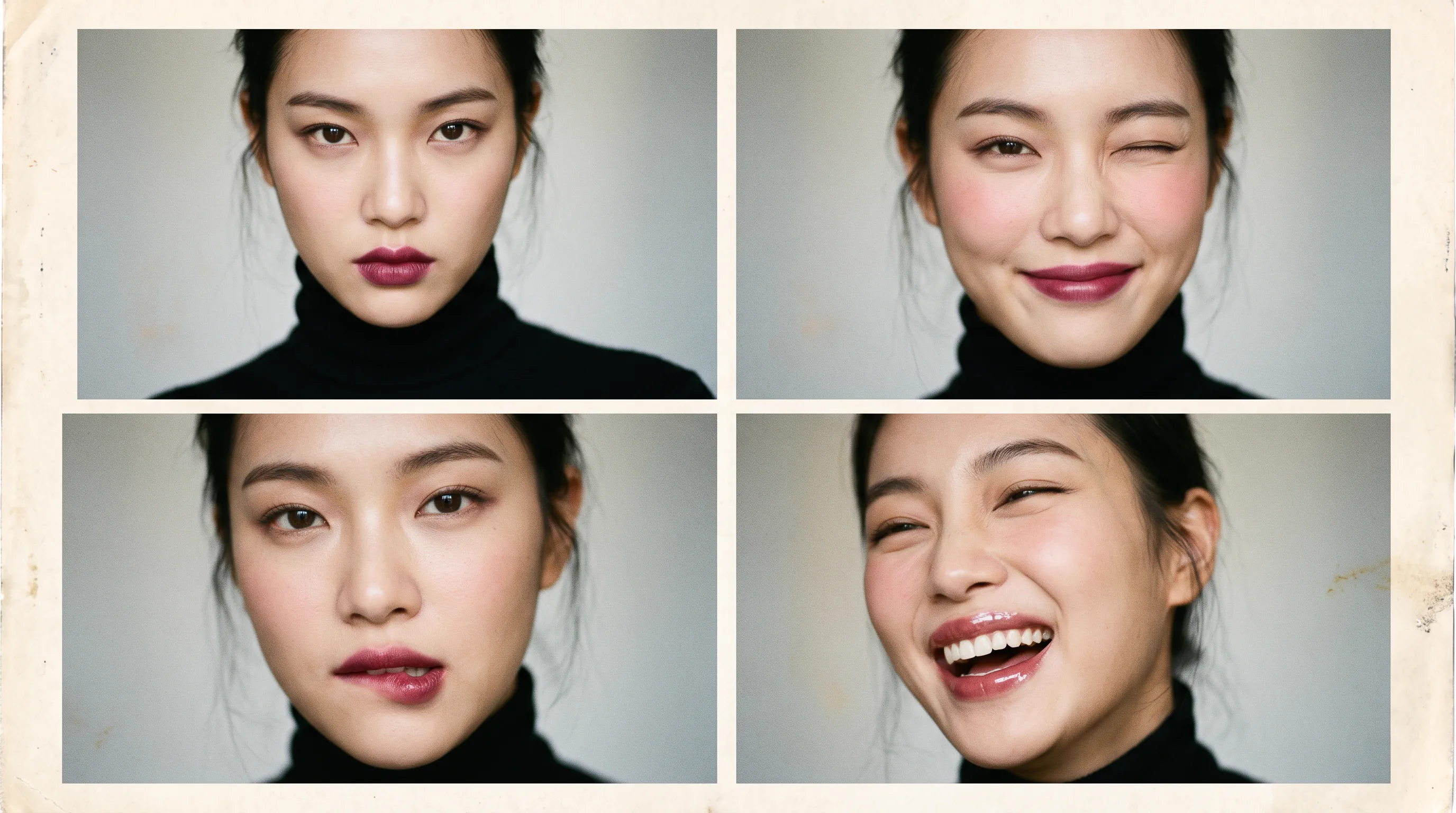
Review the whole picture after a detail edit
Close-up makeup images need careful checks of color and skin texture. Look at the whole image as well as the edited area.
From a first idea to your next image
- 01
Choose an existing result
Find an image in your results or history, then use the available editing entry or add it as a reference.
- 02
Describe this change
Choose a supported editing model. Name the change and the subject or picture conditions you want to retain.
- 03
Compare and save
Check the intended change and areas you did not plan to modify. Download the version you want to keep.
A few things before you start
Can every image be edited?
Choose a model that supports the relevant image input or editing capability. Available entries and settings depend on the model shown in the workspace.
Does editing cost additional Credits?
An edit is a new generation request. Check the Credits shown on the Generate button before submitting; the cost depends on the model, quality and image count.